Email Notifications
Email notifications can be used to send emails to a list of email addresses in the event of a check returning a warning or failure. Emails can be slower to receive over other notification types such as Slack or Discord messages, but can provide a useful fallback.
Email notifications require access to a valid SMTP host to relay the notifications through, this is not provided by EndPoint Monitor.
Setup
- Login to EndPoint Monitor and select Configuration from the left hand side menu.
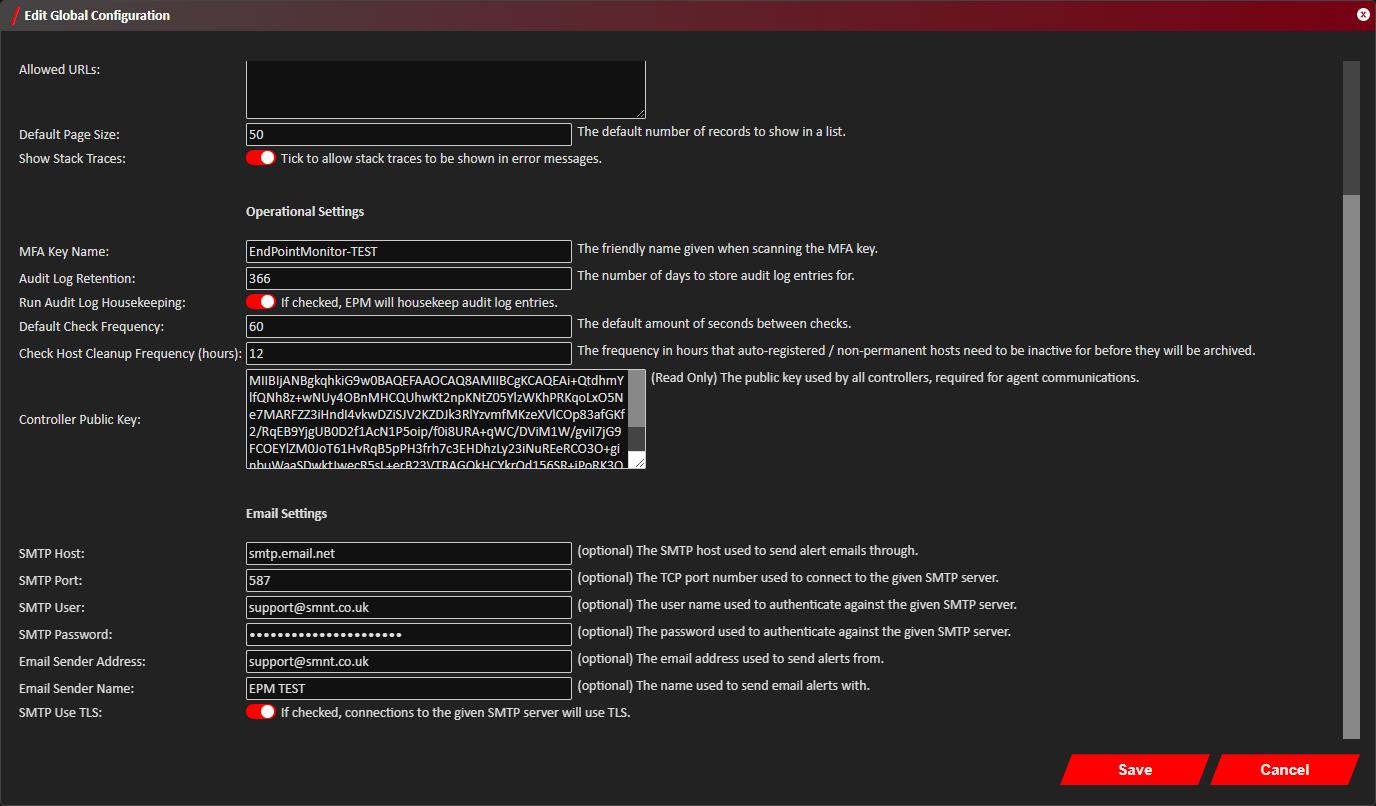
- The Edit Global Configuration window should now show. Scroll down to Email Settings and ensure the SMTP configuration
is correct.
- Click
Save . - Select Notifications from the main menu.
- Click
Add located towards the top left of the web console. - The Create Notification window should now show.
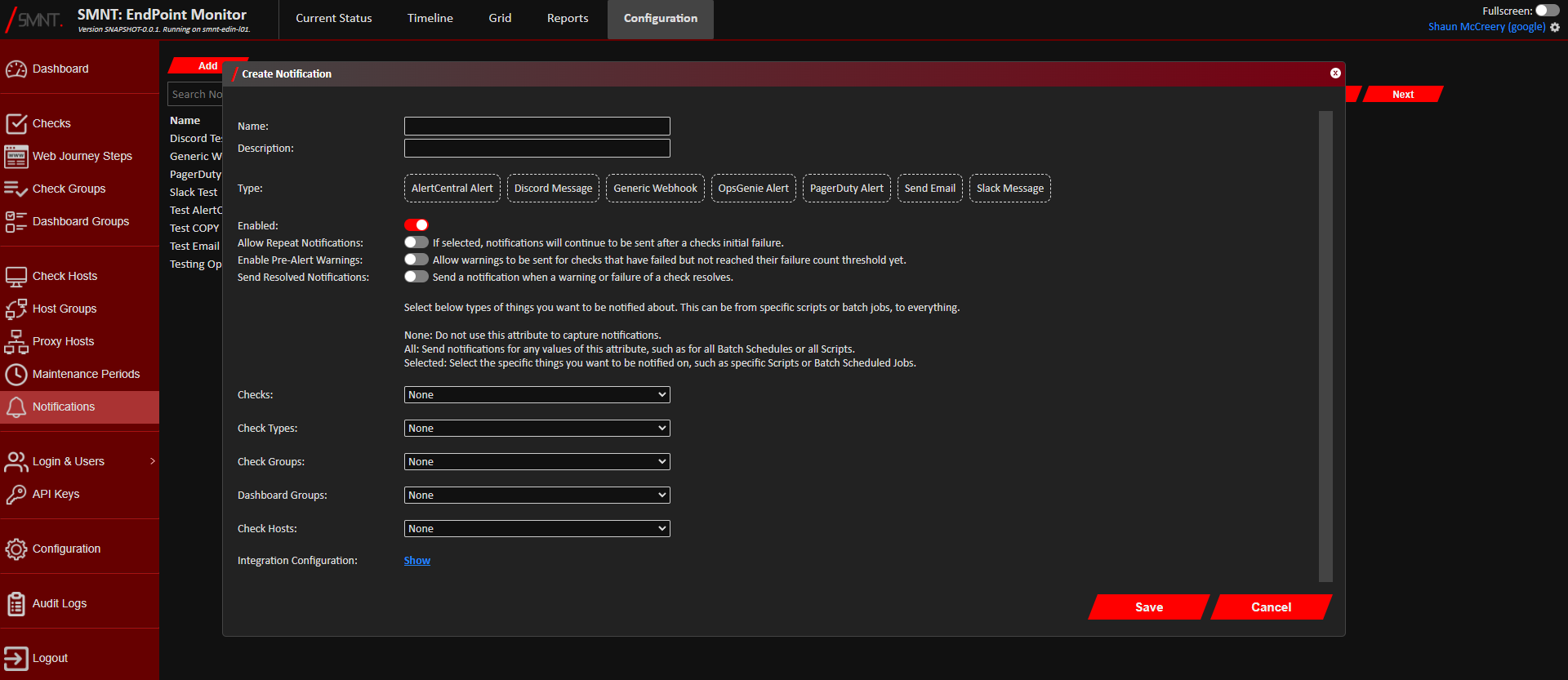
Provide a name and description, and select Send Email as the type. - Using the Checks, Check Types, Check Groups, App Groups and Check Hosts configuration options, select what checks, if
not all, that you want to send an email for their failures or warnings.
See Configuration Definitions these configuration options.
- Click
Show next to Integration Configuration.
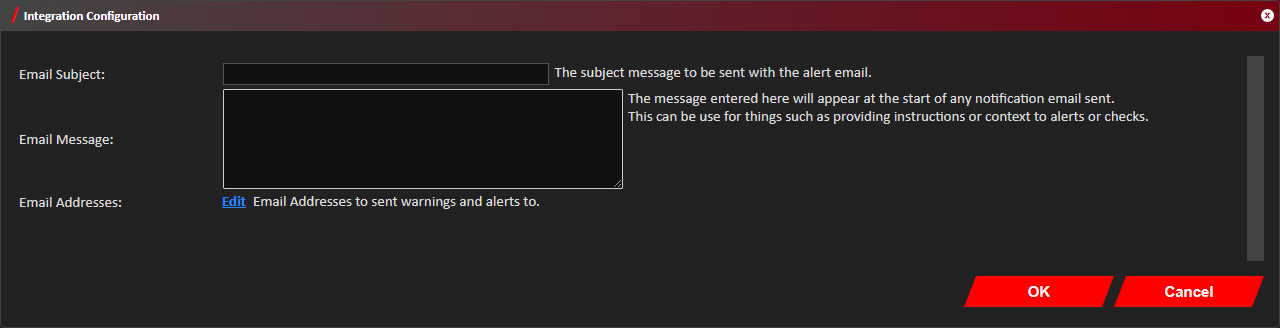
- Provide an email subject to use for the warning and alert emails sent, and an optional message to put at the top of
the email body. The rest of the email body with the alert details in is generated by EndPoint Monitor itself.
- Click
Edit next to Email Addresses and provide the list of email addresses to send email notifications to. Click Close once all email addresses have been provided. - Click
OK on the Integration Configuration window. - Click
Save . - You should now see confirmation that the Notification was successfully created in the bottom right notification area
in the web console.
The newly created Email notification will immediately be active any future triggered warnings and alerts that match your selection should trigger emails to the provided email addresses.