Host Groups
Host Groups are collections of Check Hosts that can be assigned to a Check. This allows checks to run in both a highly available setup, and for the use of dynamically scaled environments when used alongside auto-registered agents.
Adding Host Groups
Host Groups can be created through the web console, through the API or using Terraform.
The below instructions describe how to add a Host Group through the web console:
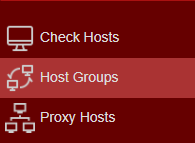
- Login to Web Console and select Host Groups from the main menu.
-
Click
Add located towards the top left of the web console. -
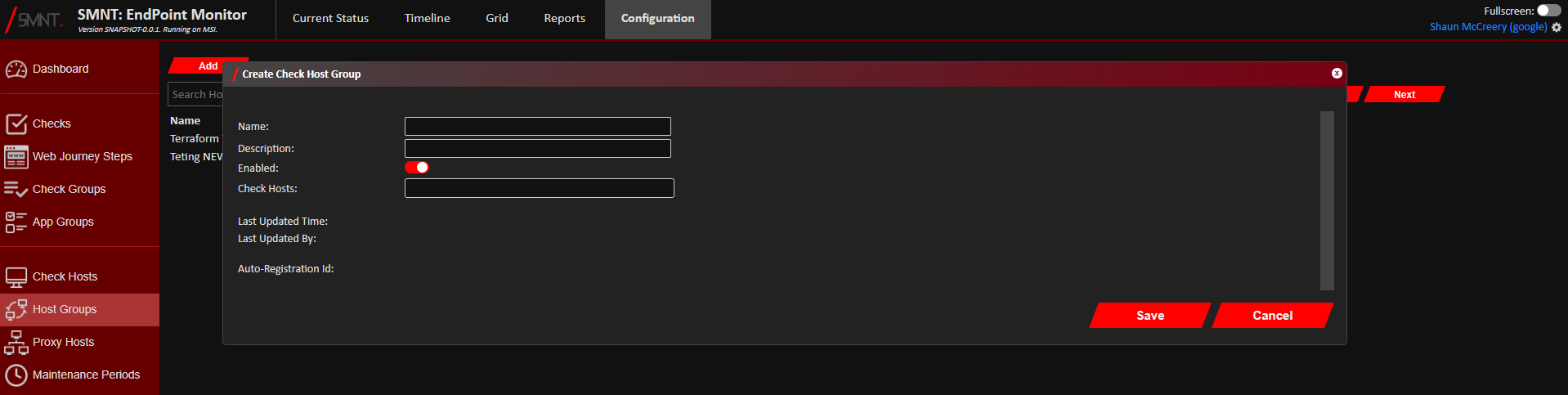
The Create Host Group window should now show.
Add the information for the new Host Group. Definitions of each of the fields can be found here.
- Click
Save . - You should now see confirmation that the Host Group was successfully created in the bottom right notification area
in the web console.
The Host Group should now be ready to use and assigned to Checks.
Amending Host Groups
- Login to Web Console and select Host Groups from the main menu.
- Check
Edit on the row of the Host Group to update.
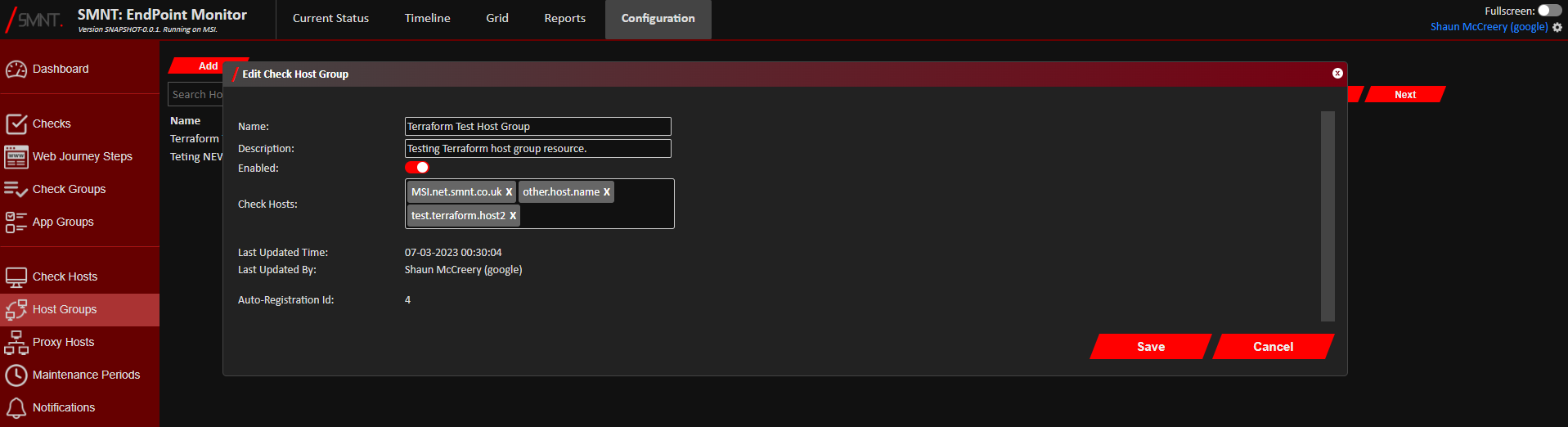
You can filter our the list of Host Groups shown by name, description or by the hostname of an assigned Check Host using the search bar. - Make the amendments required to the Host Group. Definitions of each of the fields can be found here.
- Click
Save . - You should now see confirmation that the Host Group was successfully updated in the bottom right notification area
in the web console.
Changes should take effect immediately, although any checks in flight on any unassigned Check Hosts will continue to complete.
Removing Host Groups
- Login to Web Console and select Host Groups from the main menu.
- Check
Remove on the row of the Host Group to remove.
You can filter our the list of Host Groups shown by name, description or by the hostname of an assigned Check Host using the search bar. - Click
Remove to confirm you want to delete the selected Host Group. - The Host Group should now be deleted and will immediately become unavailable. You should see confirmation of its
deletion in the notification area in the bottom right corner of the web console.
If the Host Group was still attached directly to a Check, you should see an error message informing that the Host Group could not be deleted because of this.
Configuration Definitions
| Name | Description |
|---|---|
| Name | A name to identify this Host Group by. This is what will be displayed in any references to this Host Group. |
| Description | Space for a longer description of what this Host Group is for. |
| Enabled | If the Host Group is disabled, no Checks assigned to it will be run. This can be useful if you need to pause assigned checks assigned to this Host Group. |
| Check Hosts | The list of Check Hosts that are assigned to this Host Group. Check Hosts using auto-registration and also be configured to auto-enroll in Host Groups too, and will also been shown here. |