Importing/Exporting Checks
EndPoint Monitor provides the ability to import checks from other EndPoint Monitor instance. This can be especially useful when manually configuring checks and wanting to develop and maintain configuration on a 'non-production' instance to prevent notifications being triggered from testing new check configurations.
Generally exported checks will be computable across EndPoint Monitor releases within a major version.
Password Input actions in Web Journey Checks will be absent from any exported checks, thus will not be imported too. Passwords will need to be manually added back in to any Web Journey Step Actions using these.
This functionality is only available through the web console, as programmatic configuration through the REST API or Terraform provider effectively already provide this.
Exporting Checks
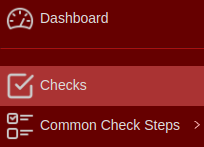
- Login to Web Console and select Checks from the main menu.
- Click
Actions next to the Check you want to edit, and then clickExport .
The list of checks shown can be filtered using the search bar to by the checks name, description, hostname or linked Check Group or App Group names. - The check should now start downloading and save as a json file, ready to be imported elsewhere.
Importing Checks
- Login to Web Console and select Checks from the main menu.
- Click
Import on the top left of the web console. - The Create Check - Import window should now be shown.

Select the file to import, and select a Check Host and App Group. - Click
Save to trigger the import of the check. - Confirmation of the import being successful will be shown in the bottom-right notification area of the web console.
Should the import fail for any reason, a popup error message will be shown with the reason for the failure.
- The check can now be edited as a normal check. If it was a Web Journey Check imported that contained Password Input actions, then the passwords will need to be manually added back into the Web Journey Step as these will not be contained within the file imported.