Notification Configuration
This document provides an overview of the configuration and configuration options of EndPoint Monitor notifications. Most notification integrations require additional configuration of the third party service being used too, using the Configuration Guides provides more detail.
Notification Types
| Type | Description |
|---|---|
| AlertCentral Alert | Send notifications to an AlertCentral instance. |
| Discord Message | Push a message to a specific Discord channel. It is only possible to send to a single channel for any given notification. Multiple notifications would need to be configured for each channel that would want notifying. |
| Generic Webhook | Send a webhook to any URL specified with customisable payloads to create custom notification integrations. |
| OpsGenie Alert | Send an alert to an OpsGenie account. This support automatic resolutions and alert correlation. |
| PagerDuty Alert | Send an alert to a PagerDuty account. This supports automatic resolutions and alert correlations. |
| Send Email | Send email notification to any number of email addresses. You will need to provide SMTP host details to enable this. |
| Slack Message | Push a message to a specific Slack channel It is only possible to send to a single channel for any given notification. Multiple notifications would need to be configured for each channel that would want notifying. |
Adding A Notification
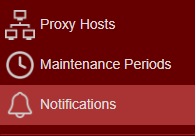
- Login to Web Console and select Notifications from the main menu.
-
Click
Add located towards the top left of the web console. -
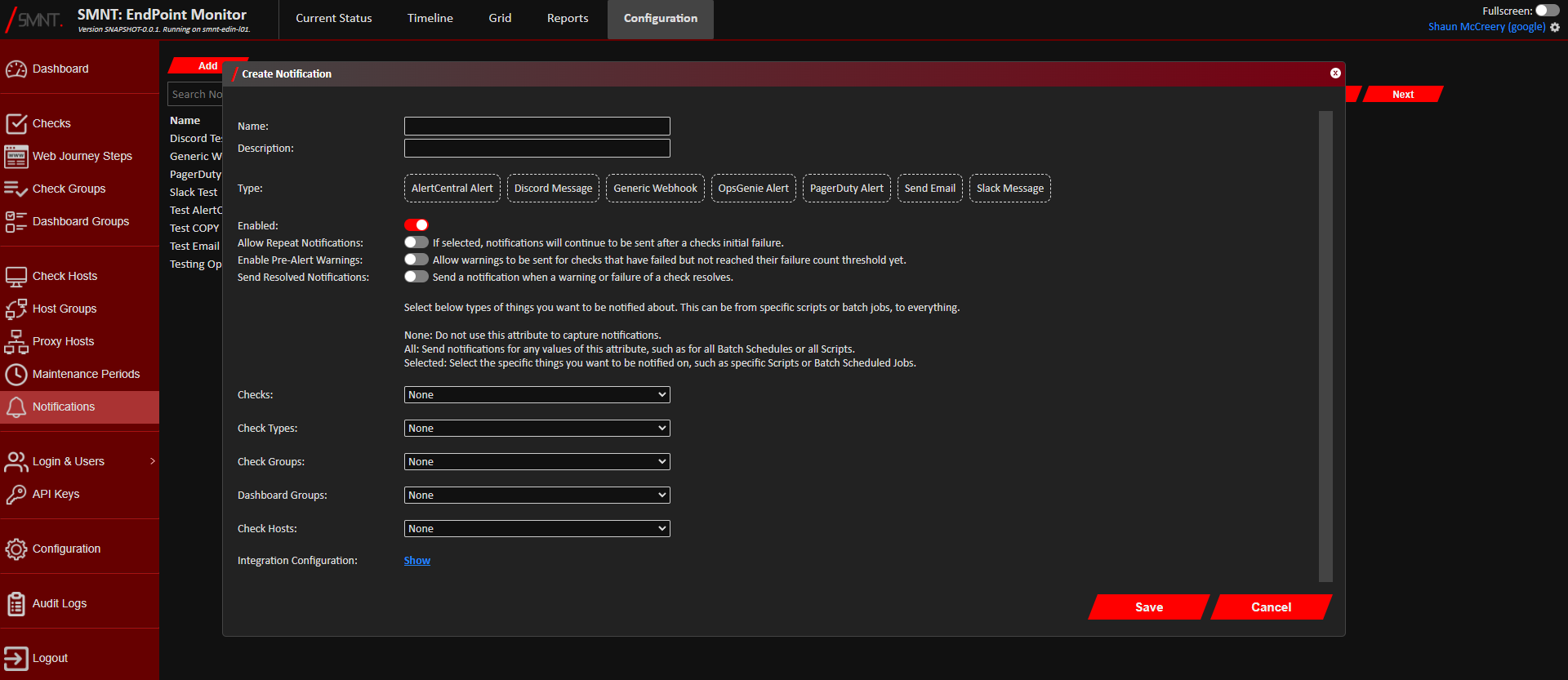
The Create Notification window should now show.
Add the information for the new Notification. Definitions of each of the fields can be found here.
Most notification integrations require additional configuration of the third party service being used too, using the Configuration Guides provides more detail.
- Click
Save . - You should now see confirmation that the Notification was successfully created in the bottom right notification area
in the web console.
The newly created notification will immediately be used on creation providing it was enabled.
Amending A Notification
- Login to Web Console and select Notifications from the main menu.
- Check
Edit on the row of the Notification to update.
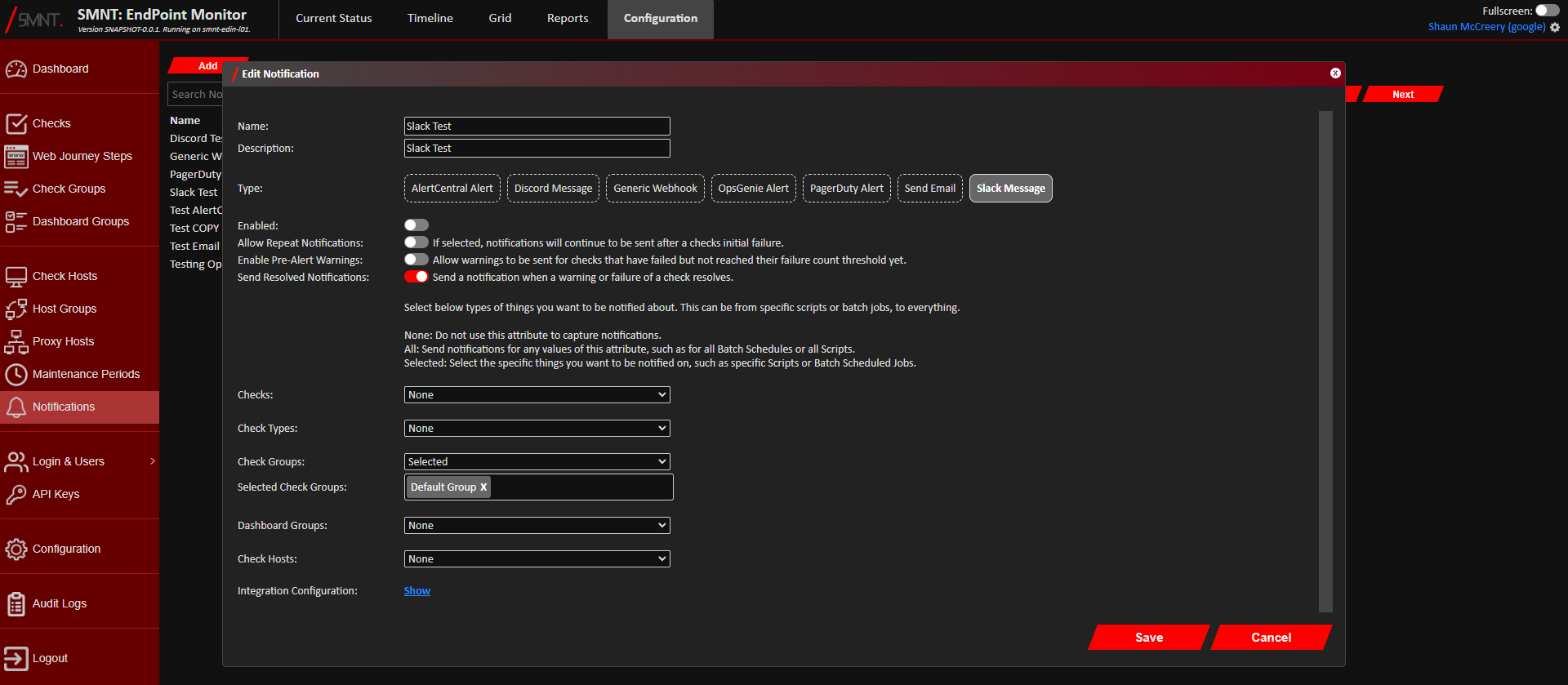
You can filter our the list of Notifications shown by name or description using the search bar. - Make the amendments required to the Notification. Definitions of each of the fields can be found
here.
Integration specific configuration will be found in when clickingShow next to Integration Configuration label.
- Click
Save . - You should now see confirmation that the Notification was successfully updated in the bottom right notification area in the web console. Changes should take effect immediately.
Removing Notifications
- Login to Web Console and select Notifications from the main menu.
- Check
Remove on the row of the Notification to remove.
You can filter our the list of Notifications shown by name or description using the search bar. - Click
Remove to confirm you want to delete the selected Notification. - The Notifications should now be deleted and will immediately become unavailable. You should see confirmation of its deletion in the notification area in the bottom right corner of the web console.
Configuration Definitions
| Name | Description |
|---|---|
| Name | A name to identify this notification configuration. |
| Description | Space for a longer description of the notification if needed. |
| Type | Select the type of notification integration to use. See Notification Types to see the options available. |
| Enabled | A toggle to enable/disable this notification as required. |
| Allow Repeat Notifications | If selected, notifications will continue to be sent after a checks initial failure. |
| Enable Pre-Alert Warnings | Allow warnings to be sent for checks that have failed but not reached their failure count threshold yet. |
| Send Resolved Notifications | Send a notification when a warning or failure of a check resolves. |
| Checks | None - Do not link any specific checks to this notification. All - Link all enabled checks to this notification. Selected - Link any number of specific checks to this notification using the Selected Checks box below this drop down list. |
| Check Types | None - Do not link any specific Check Types to this notification. All - Link all Check Types to this notification, which is the same as specifying all checks. Selected - Link any number of specific Check Types to this notification using the Selected Check Types box below this drop down list. This will mean any enabled checks of the selected Check Types will trigger this notification. |
| Check Groups | None - Do not link any specific Check Groups to this notification. All - Link all Check Groups to this notification, which is the same as specifying all checks. Selected - Link any number of Check Groups to this notification using the Selected Check Groups box that should appear when this is option is selected. |
| Dashboard Groups | None - Do not link any specific Dashboard Groups to this notification. All - Link all Dashboard Groups to this notification, which is the same as specifying all checks. Selected - Link any number of Dashboard Groups to this notification using the Selected Dashboard Groups box that should appear when this option is selected. |
| Check Hosts | None - Do not link any specific Check Hosts to this notification. All - Link all Check Hosts to this notification. Selected - Link any number of specific Check Hosts to this notification using the Selected Check Hosts box that should appear when this option is selected. |
| Integration Configuration | See Integration Configuration below. |
Integration Configuration
This configuration is used for the specific integration configuration. You will only see the configuration applicable for your selected Notification Type.
| Name | Description |
|---|---|
| AlertCentral URL | The base URL of the AlertCentral service to send notifications to, e.g. https://alertcentral.mycompany.com/ |
| AlertCentral Key | The key given for the configured Alert Source to use within AlertCentral. |
| AlertCentral Warning Severity | The severity to use in AlertCentral for any warnings given by EndPoint Monitor, such as checks that have produced a warning. |
| AlertCentral Alert Severity | The severity to use in AlertCentral for any errors or alerts given by EndPoint Monitor, such as for failed checks. |
| Discord Webhook URL | The Webhook URL provided from the Discord channel integration you with to push messages to. |
| Webhook URL | The URL to call to send alerts and warnings to. |
| Webhook Method | The request method to use for alerts and warnings. |
| Webhook Message Body | The template request body to send for alerts and warnings. Various variables are available to add into the message body. |
| Webhook Resolved URL | The URL to call when an alert or warning condition has resolved, if resolved notifications are enabled for the notification. |
| Webhook Resolved Method | The request method to use when invoking the above Resolved URL. |
| Webhook Resolved Body | The template request body to send to the Resolved URL. Various variables are available to add into the message body. |
| Webhook Headers | Add request headers to send with any webhook calls. |
| OpsGenie URL | The base URL for your OpsGenie service, usually https://api.opsgenie.com/ or https://api.eu.opsgenie.com/. |
| OpsGenie Key | The API Key given by OpsGenie for your configured API integration. |
| OpsGenie Warning Priority | The alert priority to set in OpsGenie for any warning notifications. |
| OpsGenie Alert Priority | The alert priority to set in OpsGenie for any alert notifications. |
| PagerDuty Integration Key | The Integration Key given by PagerDuty integration. |
| PagerDuty Warning Severity | The Alert Severity to set in PagerDuty for any warning notifications. |
| PagerDuty Alert Severity | The Alert Severity to set in PagerDuty for any alert notifications. |
| Email Subject | The subject message to send with any notification emails. |
| Email Message | A message to prepend to the top of the email body sent for any notification. |
| Email Addresses | The list of email addresses to send the email notification to. |
| Slack Token | The Slack OAuth used to connect to your Slack workspace. |
| Slack Channel | The Slack channel send the notification to. |
| Notify Channel | Enable to also send an @channel handle to trigger a notification to all channel members when a notification is sent. |
Generic Webhook Template Variables
| Variable | Description |
|---|---|
%severity% |
The severity of the notification (CRITICAL, ALERT, WARNING, INFO or OTHER). |
%title% |
The title/subject of the notification, usually a single line description. |
%message% |
The detailed information about the notification, which typically contains the reason a check failed. |
%check% |
The name of the check that is alerting. |
%checkType% |
The type of check the alerting check is. |
%hostname% |
The hostname the alerting check is checking. |
%checkGroup% |
The Check Group the alerting check is in. |
%dashboardGroup% |
The Dashboard Group the alerting check is in. |
%correlationId% |
A unique id generated when a check first fails that can be used to identify repeat notifications. |