Discord Notifications
Discord notifications allow messages to be pushed to a Discord channel in the event of a check warning or failure.
Only one Discord channel can have messages pushed to for each Notification configured, but multiple Notifications can be configured to use Discord if multiple channels need notifications.
Setup
- Within the Discord server, click the cog icon on the channel you want to send notifications to.
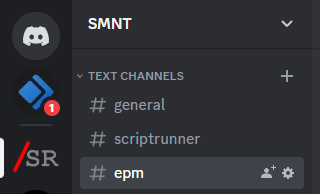
- Select Integrations on the channel configuration screen.
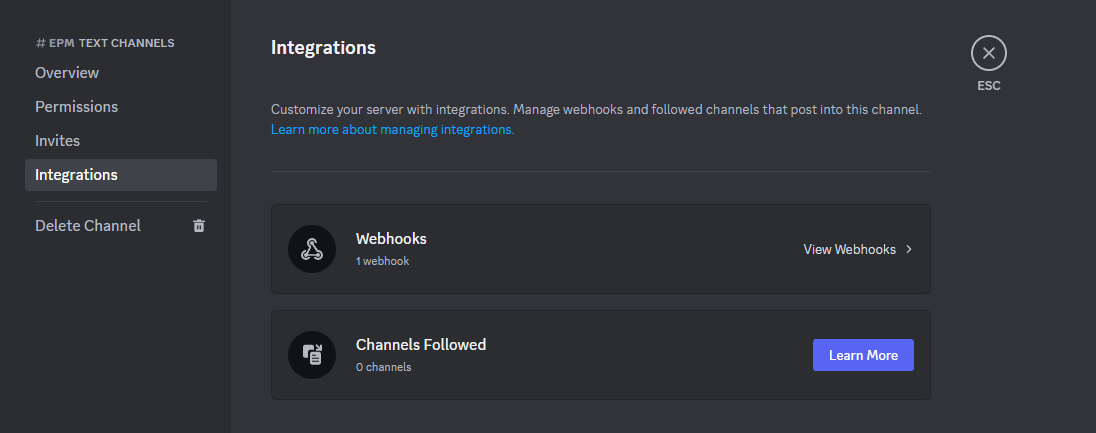
- Click on View Webhooks.
- Click on the New Webhook button, and provide with a name and icon if desired.
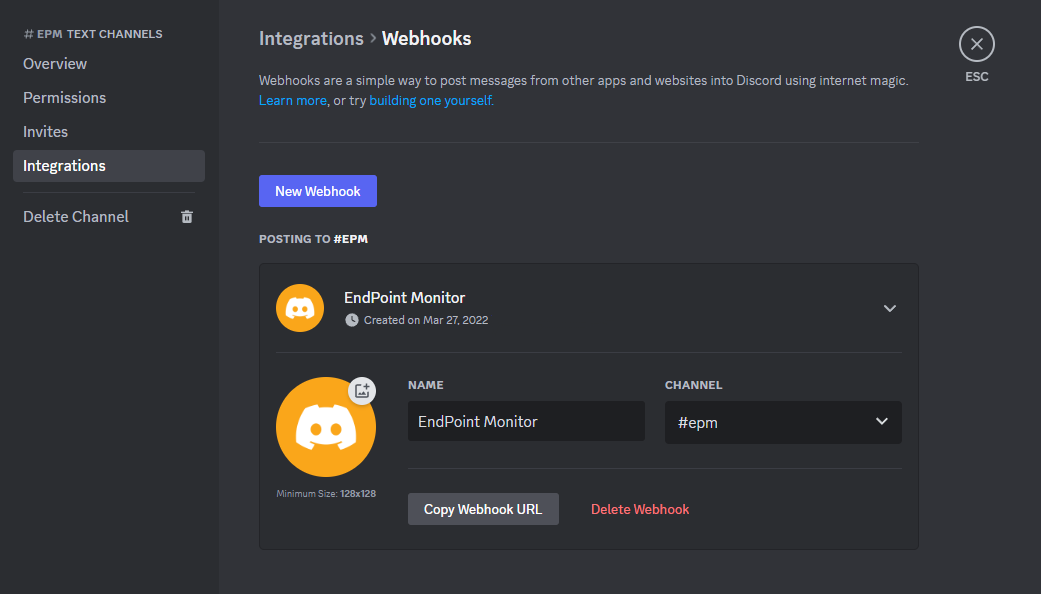
- Click on Copy Webhook URL. You may want to paste it somewhere temporary ready for use in later step to be sure it
doesn't get copied over.
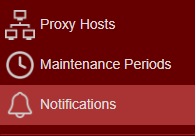
- Navigate to your EndPoint Monitor installation and login to Web Console and select Notifications from the main menu.
- Click
Add located towards the top left of the web console. - The Create Notification window should now show.
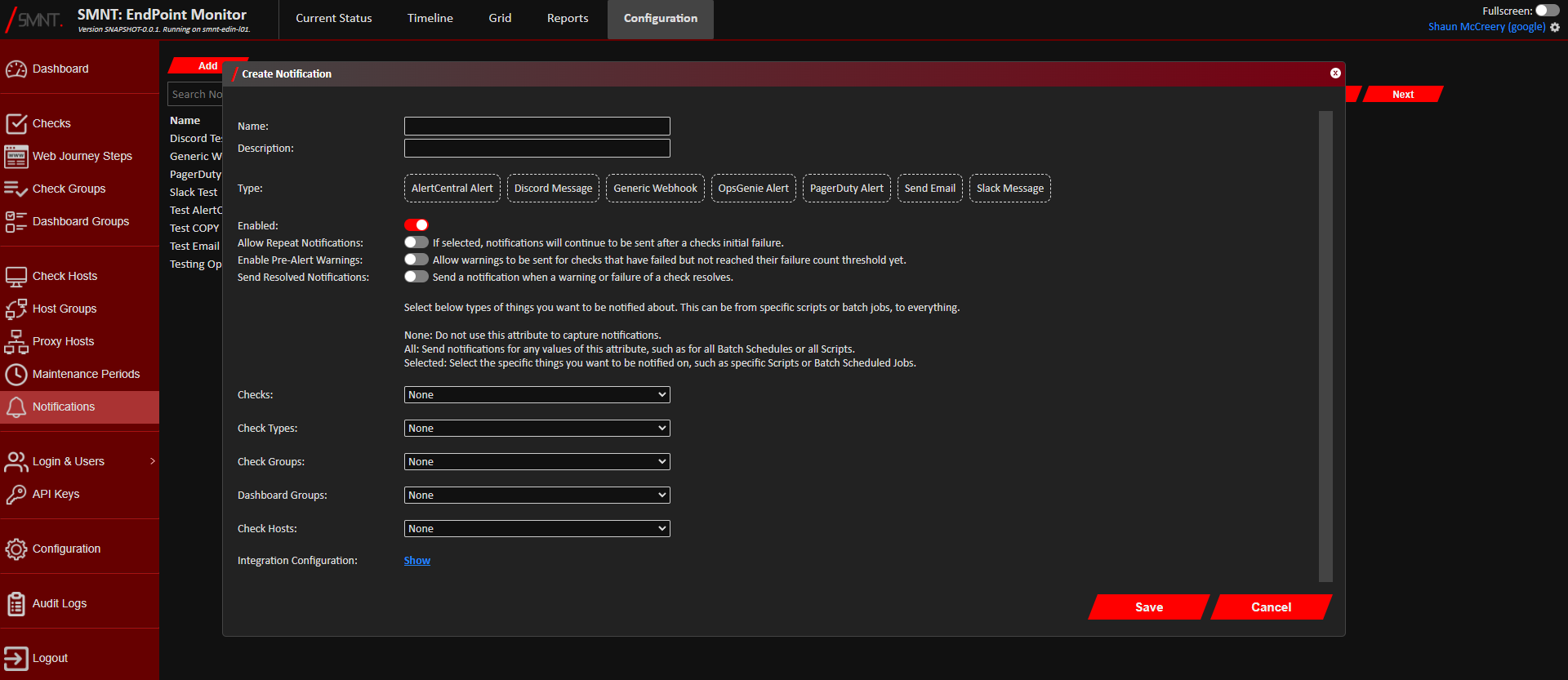
Provide a name and description, and select Discord Message as the type. - Using the Checks, Check Types, Check Groups, App Groups and Check Hosts configuration options, select what you want
to be notified on in this Discord channel. See Configuration Definitions
these configuration options.
- Click
Show next to Integration Configuration, and add the provided Webhook URL given by Discord in the Discord Webhook URL field, and clickOK . - Click
Save . - You should now see confirmation that the Notification was successfully created in the bottom right notification area
in the web console.
The newly created Discord notification will immediately be active any future triggered warnings and alerts that match your selection criteria should push a message to your Discord channel.
