Maintenance Periods
Maintenance Periods allow for the suppression of Notifications for Checks using pre-defined daily or weekly time schedules.
They can be set for specific Checks, or for all checks within Check Groups or Dashboard Groups. During a maintenance period, checks will still run, but warning or alert notifications will not trigger, and results are excluded from some reports.
Adding Maintenance Periods
Maintenance Periods can be created through the web console, through the API or using Terraform.
The below instructions describe how to add a Maintenance Period through the web console:
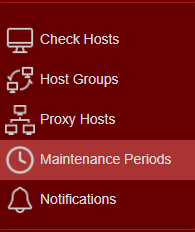
- Login to Web Console and select Maintenance Periods from the main menu.
- Click
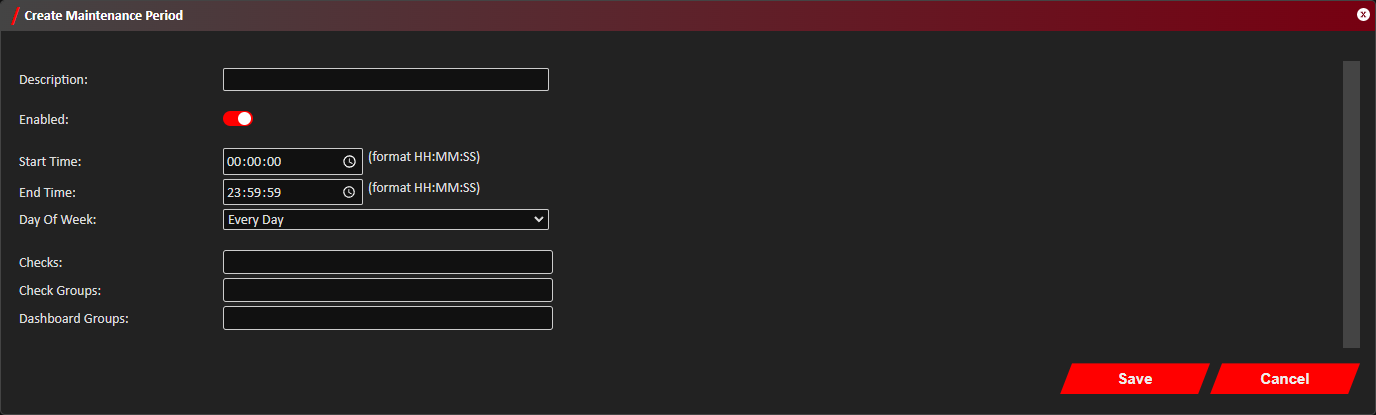
Add located towards the top left of the web console. - The Create Maintenance Period window should now show. Definitions for each field can be found below under
Configuration Definitions.
- Click
Save . - You should now see confirmation that the Maintenance Period was successfully created in the bottom right notification
area in the web console.
It may take up to a minute for the newly created Maintenance Period to apply in multi-controller installations while caches are updated.
Amending Maintenance Periods
- Login to Web Console and select Maintenance Periods from the main menu.
- Check
Edit on the row of the Maintenance Period to update.
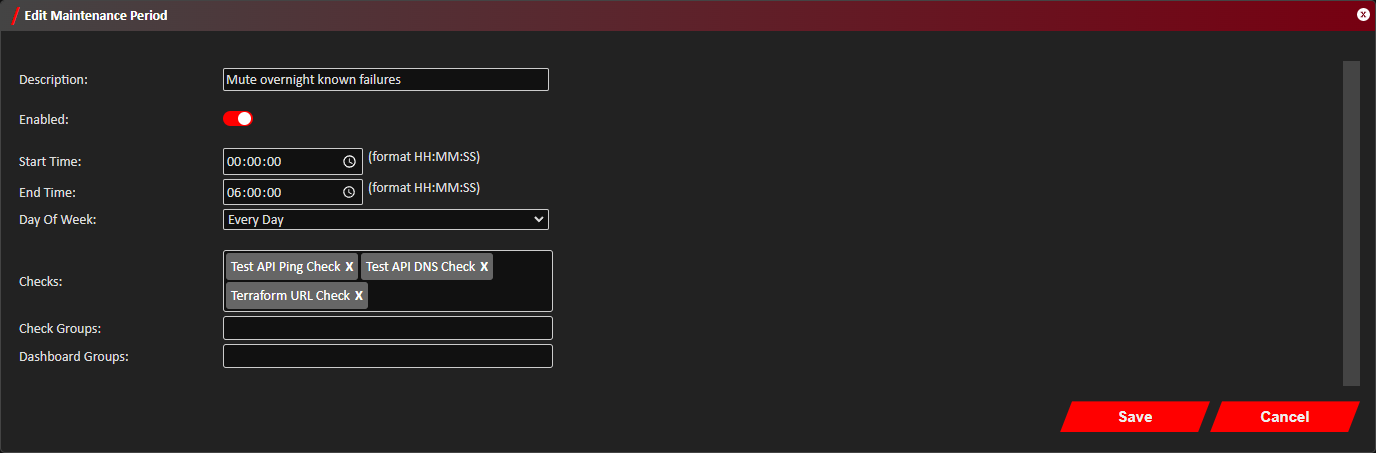
You can filter our the list of Maintenance Periods shown by the description of the maintenance period, or name of any attached Checks, Check Groups or Dashboard Groups using the search bar. - Update the Maintenance Period as required. Definitions for each field can be found below under
Configuration Definitions.
- Click
Save . - You should now see confirmation that the Maintenance Period was successfully updated in the bottom right notification
area in the web console.
It may take up to a minute for any changes to the Maintenance Period to apply in mutli-controller installations due to cache propagation.
Removing Maintenance Periods
- Login to Web Console and select Maintenance Periods from the main menu.
- Check
Remove on the row of the Maintenance Period to remove.
You can filter our the list of Maintenance Periods shown by the description of the maintenance period, or name of any attached Checks, Check Groups or Dashboard Groups using the search bar. - Click
Remove to confirm you want to delete the selected Maintenance Period. - The Maintenance Period should now be deleted. It may take up to a minute for it to be removed from all controllers in a mutli-controller installation due to cache propagation times.
Configuration Definitions
| Name | Description |
|---|---|
| Description | Provide a description of what the maintenance period is for. |
| Enabled | A switch to enable or disable the maintenance period as required. |
| Start Time | The start time the maintenance period applies from. |
| End Time | The time the maintenance period finishes. This must be after the Start Time. If the maintenance period needs to run through midnight, two will need to be created, one finishing at 23:59:59 and the next starting at 00:00:00. |
| Day Of Week | Select the day of week the maintenance period applies to, or Every Day if it should apply every day. |
| Checks | Select any individual checks that apply to this maintenance period. |
| Check Groups | Select any number of Check Groups that apply to this maintenance period, meaning all associated checks in those groups will have their notifications suppressed for the given period. |
| Dashboard Groups | Select any number of Dashboard Groups that apply to this maintenance period, meaning all associated checks in those groups will have their notifications suppressed for the given period. |