Managing User Groups
User Groups are provided to allow specific permissions within EndPoint Monitor to be granted to groups of users as and how you require.
The specific permissions that can be granted and their definitions can be found here.
Adding User Groups
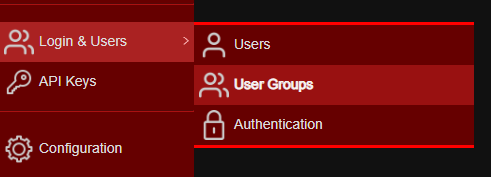
- Login to Web Console and select Login & Users then User Groups from the main menu.
-
Click
Add . -
The Create Group window should now show.
Add the name, description and permissions as required. Definitions of permissions can be found here.

- Click
Save .
Confirmation of creation of the User Group should show in the bottom right corner of the web console, and you should now see it listed in your list of User Groups. Users can now be added to this User Group.
Amending User Groups
- Login to Web Console and select Login & Users then User Groups from the main menu.
-
Click
Edit on the line of the User Group you want to edit. -
The Edit Group window should now show.
Change the name, description and permissions as required. Definitions of permissions can be found here.
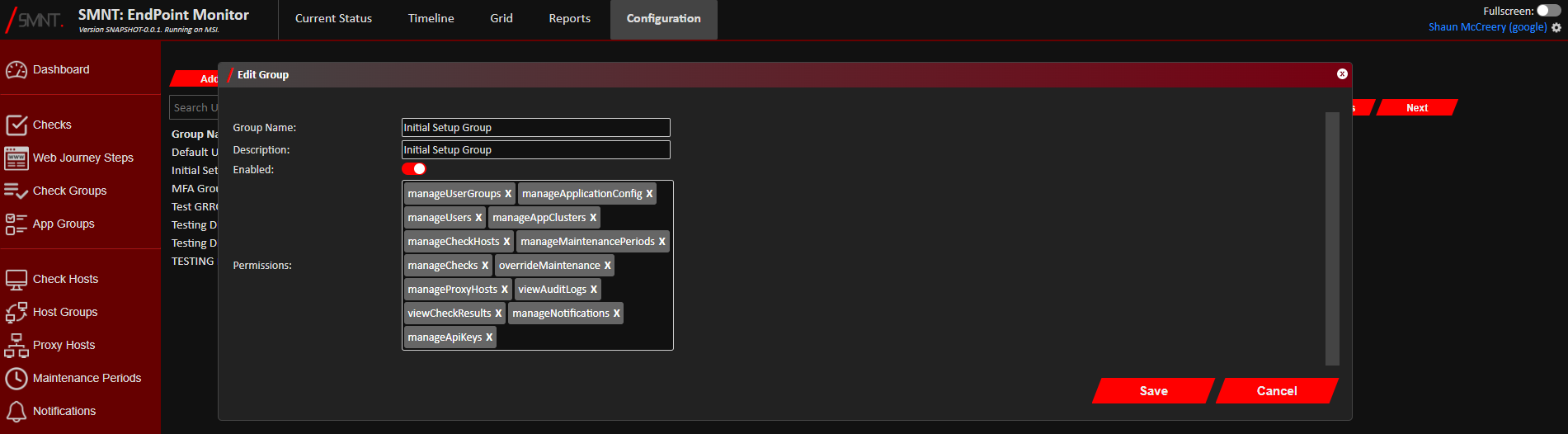
- Click
Save .
Your changes should now be saved, and you should see confirmation of the update with a notification in the bottom right corner of the web console.
Changes in permissions will take effect straight away, although users already logged in will need to log out and back in for their sessions to show any amended permissions.
Removing User Groups
- Login to Web Console and select Login & Users then User Groups from the main menu.
- Click
Remove on the line of the User Group you want to delete. - Click
Remove to confirm you want to delete the selected User Group. - The User Groups should now be deleted if it was not linked to any existing users, and you should see a notification
in the bottom right of the web console confirming its deletion.
If your request failed you should see and error notification displayed telling you the reason the User Group can not be deleted yet, e.g. it is currently linked to an existing user.
Permissions
| Name | Description |
|---|---|
| manageApiKeys | Allows users to add, edit and remove API keys used for programmatic configuration of checks. |
| manageAppClusters | Allows users to add, edit and remove Checks Groups and App Groups. |
| manageApplicationConfig | Allows users to edit the EndPoint Monitor global configuration under the Configuration menu option. |
| manageCheckHosts | Allows users to add, edit and remove Check Hosts within the EndPoint Monitor console. |
| manageChecks | Allows users to add, edit and remove all types of checks within the EndPoint Monitor console. |
| manageMaintenancePeriods | Allows users to add, edit and remove Maintenance Periods with in the EndPoint Monitor console. |
| manageNotifications | Allows users to add, edit and remove notifications used to send alerts to third party applications. |
| manageProxyHosts | Allows users to add, edit and remove proxy hosts used by checks that need to use an HTTP proxy to reach their target. |
| manageUserGroups | Allows users to manage user groups within the EndPoint Monitor web console. |
| manageUsers | Allows users to add, edit and remove users within the EndPoint Monitor web console. |
| overrideMaintenance | Allows users to place individual checks into maintenance mode to suppress alerts. |
| viewAuditLogs | Allows users to view and search the Audit Logs within the EndPoint Monitor web console. |
| viewCheckResults | Allows users to view the results of any individual checks. |