API Authentication
Access to the EndPoint Monitor API is managed through API keys issued through the web console. These keys can either provide read only access or both read and write access.
Issuing an API Key
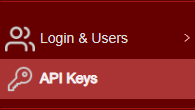
- Login to Web Console and select API Keys from the main menu.
-
Click
Add located towards the top left of the web console. -
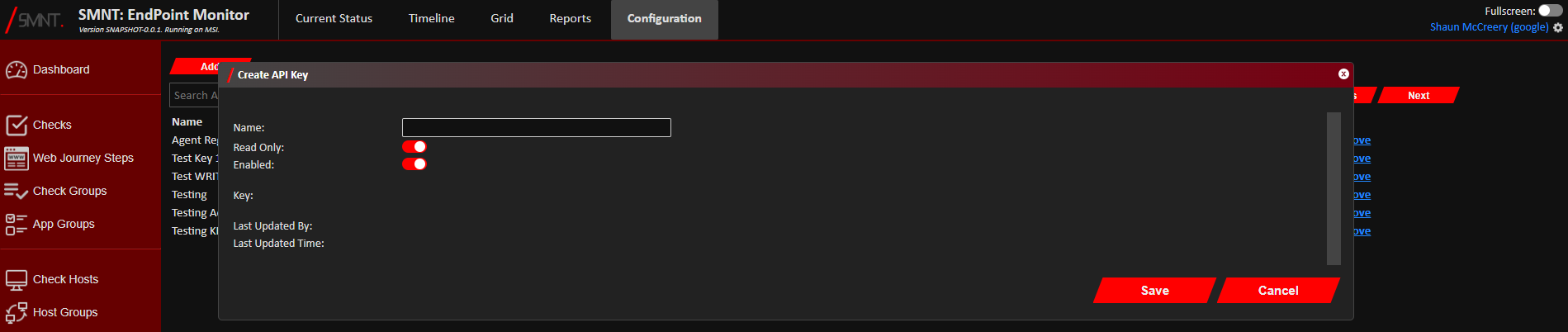
The Create API Key window should now show.
Provide a name to help provide context of what this API key is used for, and toggle off 'Read Only' if this API key needs write access to EndPoint Monitor.
- Click
Save .
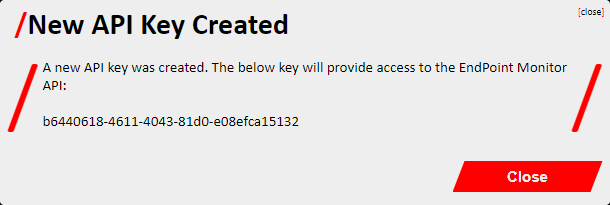
You should now see a dialog box stating 'New API Key Created', and this will also contain the actual API Key generated for you. Copy and save this somewhere safe for its intended use, and then clickClose .
Updating an API Key
- Login to Web Console and select API Keys from the main menu.
-
Click
Edit on the line of the API Key you want to edit. You can filter the list of API Keys shown by the API Key name or leading 8 characters using the 'Search API Keys' bar at the top of the web console. -
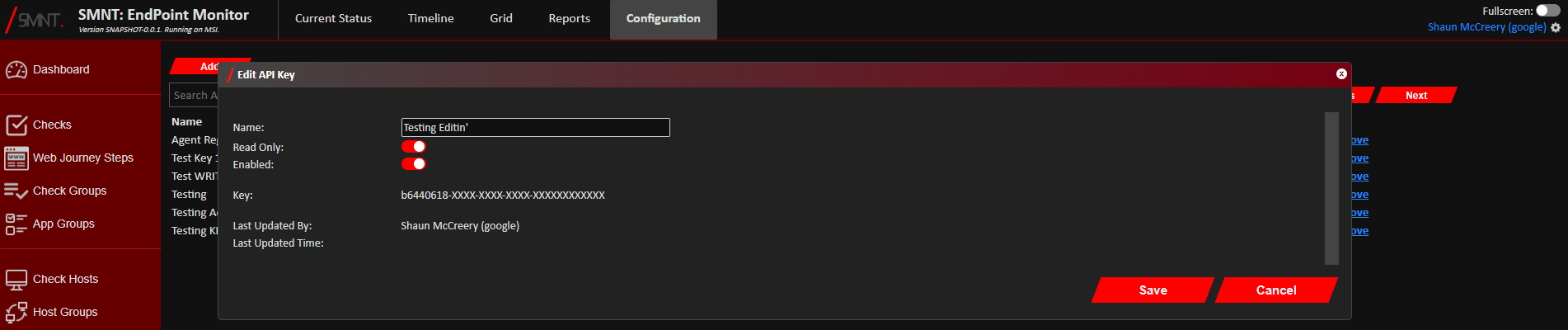
The Edit API Key window should now show.
Change the name, read only flag and enabled flag as required. The key itself can not be changed once issued.
- Click
Save .
Your changes should now be saved and immediately take effect. Confirmation of the successful update should be shown in the bottom left notification area of the web console.
Removing API Keys
- Login to Web Console and select API Keys from the main menu.
-
Click
Remove on the line of the API Key you want to edit. You can filter the list of API Keys shown by the API Key name or leading 8 characters using the 'Search API Keys' bar at the top of the web console. -
Click
Remove to confirm you want to delete the selected API Key. - The API Key should now be deleted, and its access immediately revoked. Confirmation of the successful deletion should be shown in the bottom left notification area of the web console.