TLS Certificate Checks
TLS Certificate checks provide a process to check the certificate presented by a HTTPS connection to a URL and check its validity and the number of days remaining on it, and any certificates found as part of the certificate chain. These checks can provide easy ways to ensure alerts are triggered before certificates expire, especially with the practice of shorted validity periods being used becoming increasingly common.
TLS Certificate checks allow for both checking the full certificate chain or only the certificate returned by the given URL (so not a full validity check), and can be configured to only check the validity periods of the certificates themselves and nothing else.
Adding a TLS Certificate Check
As with all checks, TLS Certificate checks can be managed through the API or using Terraform. See the relevant documentation for each for adding DNS checks through these. This guide will show how to add a TLS Certificate check through the web console.
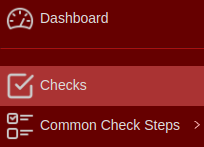
- Login to Web Console and select Checks from the main menu.
- Click
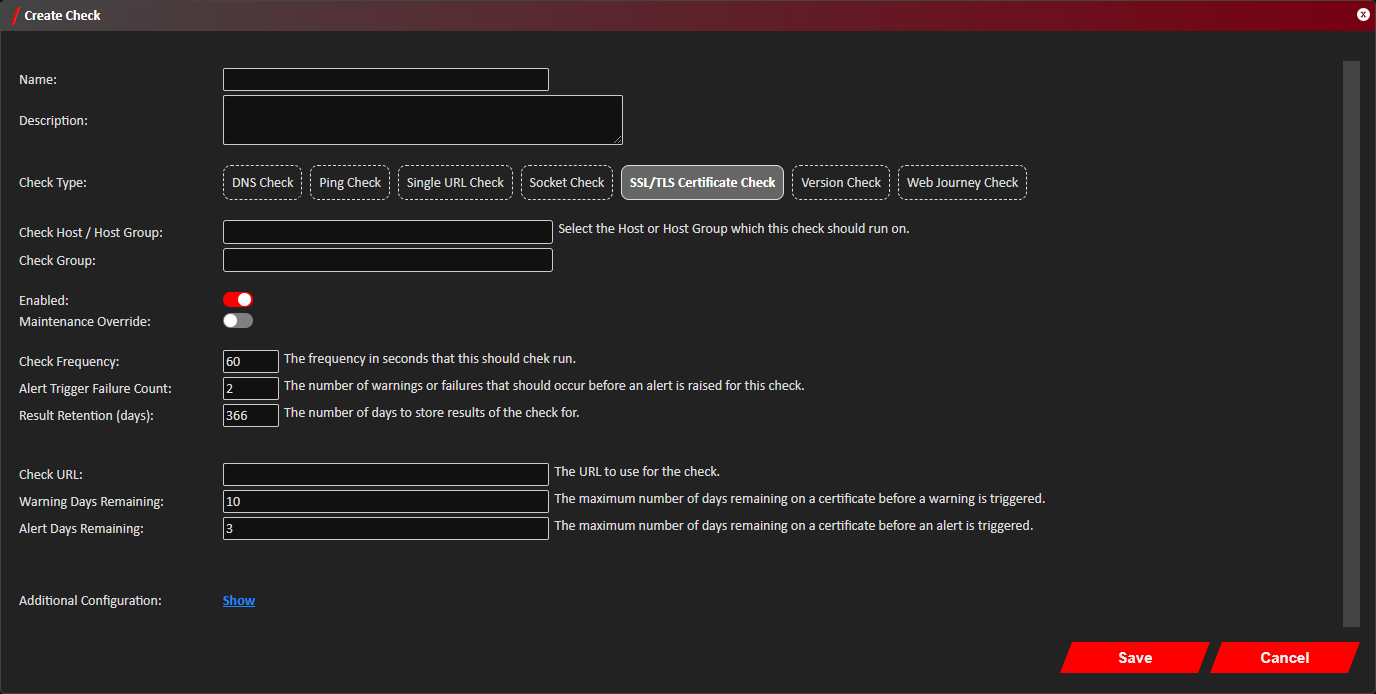
Add located towards the top left of the web console. - The Create Check window should now show. Definitions for each field can be found below under
Configuration Definitions.
Ensure the Check Type is set to SSL/TLS Certificate Check.
Options to only check the certificate dates and disabling checking the full certificate chain can be found by clickingShow next to Additional Configuration.
- Click
Close on the Additional Configuration windows if still open, and clickSave . - You should now see confirmation that the Check was successfully created in the bottom right notification area in the
web console. If the check was created in the Dashboard then it will shortly appear under the Check Group it was
assigned too.
Newly created checks will initially show with as a successful check in colour on the dashboard until it's first run, but will have its status show as either empty or a '-'.
Amending a URL Check
As with all checks, TLS Certificate checks can be managed through the API or using Terraform. See the relevant documentation for each for adding URL checks through these. This guide will show how to amend a TLS Certificate check through the web console.
- Login to Web Console and select Checks from the main menu.
- Click
Actions next to the Check you want to edit, and then clickEdit .
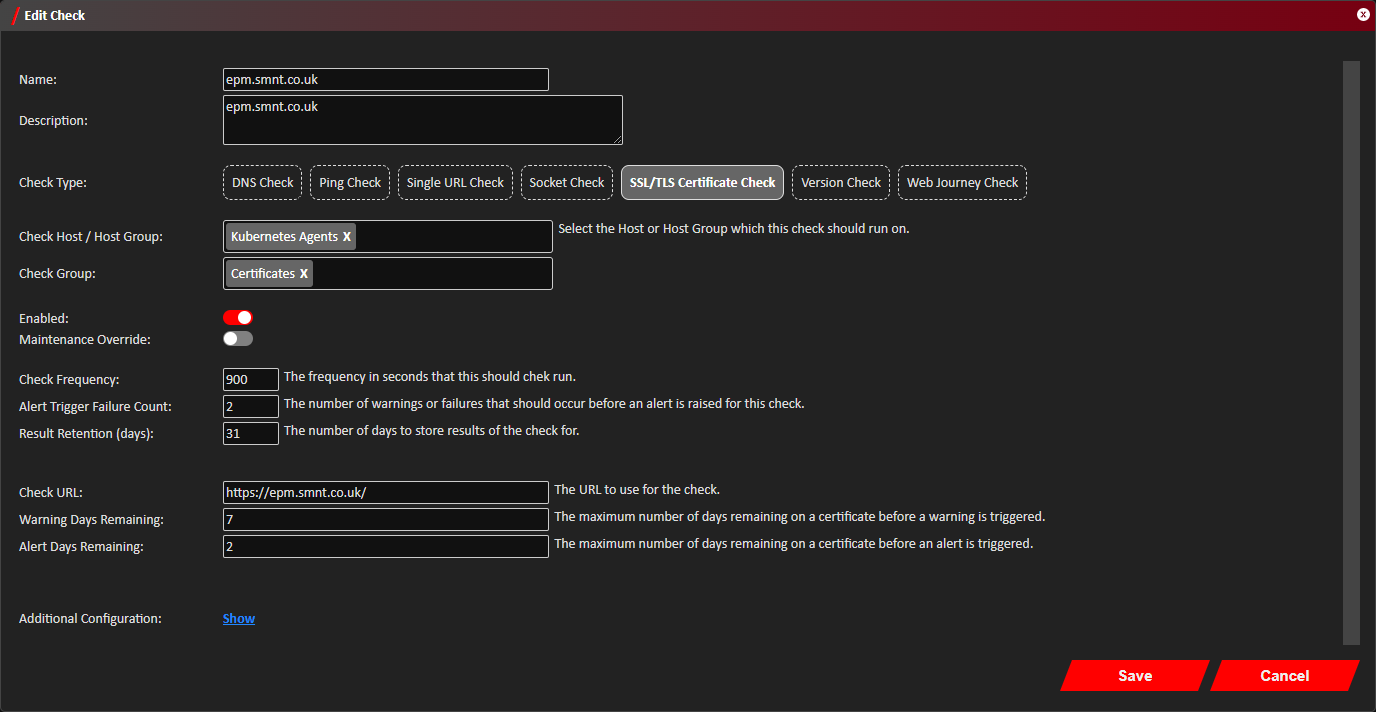
The list of checks shown can be filtered using the search bar to by the checks name, description, hostname or linked Check Group or App Group names. - The Edit Check window should now show. Definitions for each field can be found below under
Configuration Definitions.
Ensure the Check Type is set to SSL/TLS Certificate Check.
Options to only check the certificate dates and disabling checking the full certificate chain can be found by clickingShow next to Additional Configuration.
- Click
Close on the Additional Configuration windows if still open, and clickSave . - Click
Save . - Confirmation the check was successfully updated should be shown in the bottom right notification area of the web console. Any checks in flight will continue to use the previous configuration.
Removing TLS Certificate Checks
- Login to Web Console and select Checks from the main menu.
- Click
Actions next to the Check you want to edit, and then clickRemove .
The list of checks shown can be filtered using the search bar to by the checks name, description, hostname or linked Check Group or App Group names. - Click
Remove on the Remove Check conformation prompt. - Confirmation the check was successfully deleted should show in the bottom right notification area of the web console. Checks in flight may still try and complete so could still produce an alert shortly after deletion. All result history of the check will also be removed.
Configuration Definitions
| Name | Description |
|---|---|
| Name | Provide a name to define what this check is monitoring. |
| Description | Space to provide a longer description of what the check is monitoring. |
| Check Type | The type of check this is. This should be set to SSL/TLS Certificate Check. |
| Check Host / Host Group | The Check Host or Host Group to run this check on. |
| Hostname | The hostname to lookup as part of this check. |
| Check Group | The Check Group to assign this check to, which will determine which dashboard it will be shown in. |
| Enabled | A toggle to enable or disable this check from running. |
| Maintenance Override | A toggle to manually put the check into maintenance mode. This allows the check to continue running and storing results, but failures will not produce any alerts or notifications, and do not get counted in some reports. |
| Check Frequency | The minimum frequency in seconds that this check should be run. |
| Alert Trigger Failure Count | The number of successive failed checks that should occur before an alert or notification is fired. |
| Result Retention (days) | The number of days that the history of results for this check should be retained for. |
| Check URL | The URL to check the certificate on starting with https://, for example https://www.mycompany.com/. |
| Warning Days Remaining | The maximum number of days remaining on a certificate before a warning is triggered. |
| Alert Days Remaining | The maximum number of days remaining on a certificate before an alert is triggered. |
| Additional Configuration | Additional configuration for this check can be found by clicking |
Additional Configuration
| Name | Description |
|---|---|
| Check Certificate Dates Only | If toggled on only the certificate validity period will be checked, and nothing else about if it is valid or can be trusted. |
| Check Full Certificate Chain | If toggled off only the initial certificate will be checked, ignoring any others in the certificate chain (other than establishing the chain can be followed to a trusted Certificate Authority). |