Check Groups
Checks in EndPoint Monitor are grouped in two tiers. The top level tier is Dashboard Groups. Dashboard Groups then contain Check Groups, with the Check Groups containing the Checks themselves. These groups are largely just organisational and don't have any impact of the running of checks themselves.
Check Groups are used to group checks under a Dashboard Group together in places like the web console dashboard and reports, and when configuring Notifications and Maintenance Periods.
Adding Check Groups
Check Groups can be created through the web console, through the API or using Terraform.
The below instructions describe how to add a Check Group through the web console:
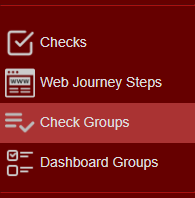
- Login to Web Console and select Check Groups from the main menu.
- Click
Add located towards the top left of the web console. - The Create Check Group window should now show. Provide and name and description for the new Check Group and select
the App Group to associate it to.

- Click
Save . - You should now see confirmation that the Check Group was successfully created in the bottom right notification area in the web console.
Amending Check Groups
- Login to Web Console and select Check Groups from the main menu.
- Check
Edit on the row of the Check Group to update.
You can filter our the list of Check Groups shown by name, description or the name of the associated Dashboard Group using the search bar. - Change the name, description and associated Dashboard Group of the Check Group as required.

- Click
Save . - You should now see confirmation that the Check Group was successfully updated in the bottom right notification area in the web console.
Removing Check Groups
Be sure that you
intend to delete the associated checks when deleting a Check Group.
- Login to Web Console and select Check Groups from the main menu.
- Check
Remove on the row of the Check Group to remove.
You can filter our the list of Check Groups shown by name, description or the name of the associated Dashboard Group using the search bar. - Click
Remove to confirm you want to delete the selected Check Group. - The Check Group should now be archived and any Checks still associated to it also archived.